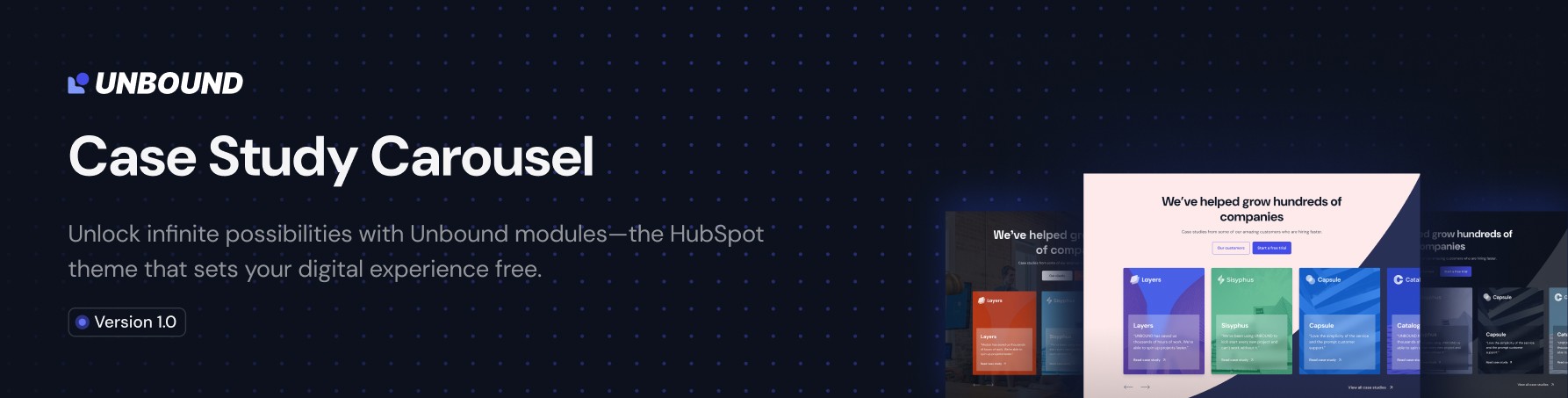
Case Study Carousel
Getting Started Guide
Welcome to your new Case Study Carousel - UNBOUND module for HubSpot! Follow this step-by-step guide to quickly set up and customize your carousel to showcase your case studies effectively.
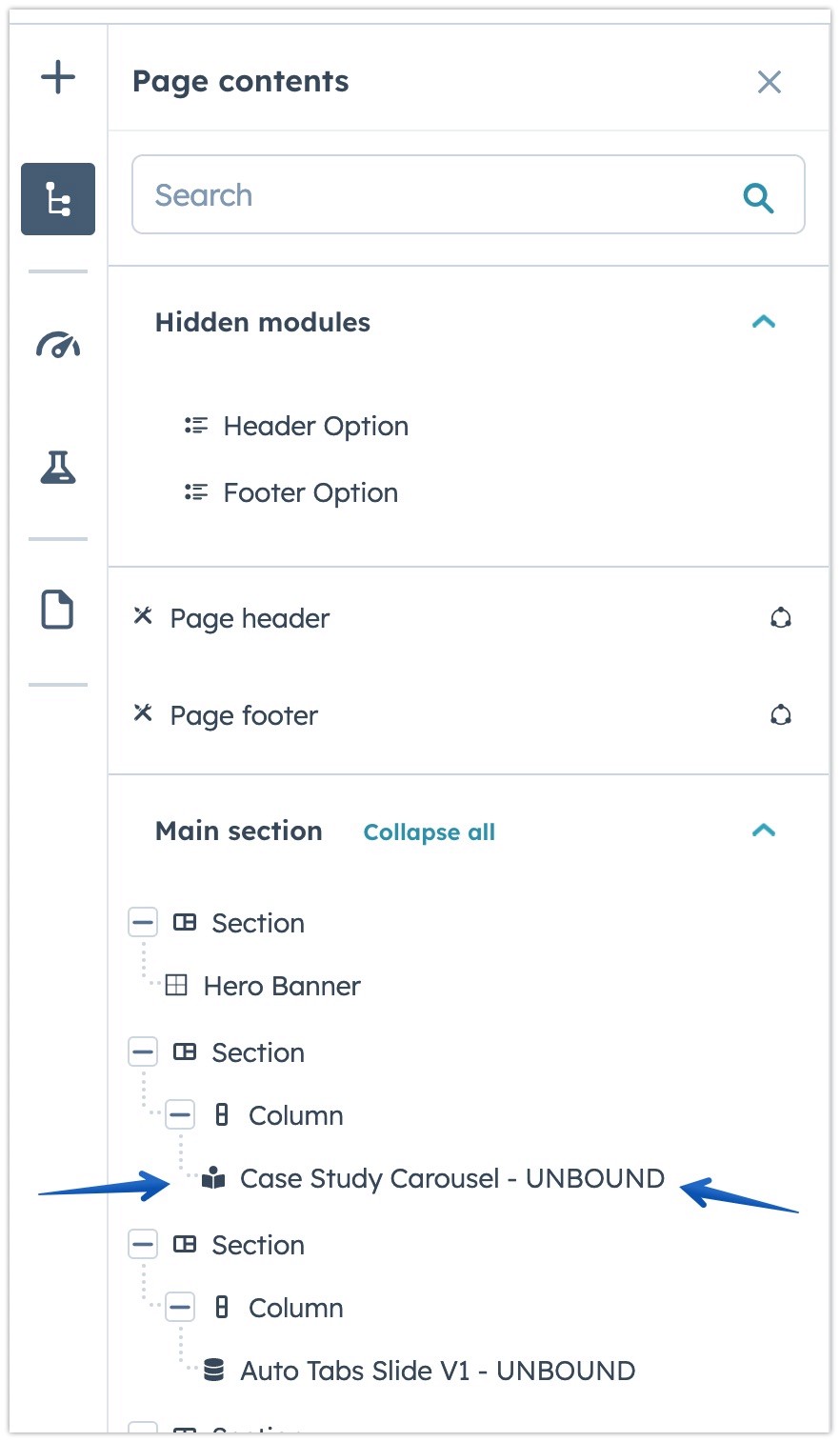
Step 1: Accessing the Module
Navigate to Contents > Case Study Carousel - UNBOUND in your HubSpot page editor, or just tap near the center of the module. This is where you will configure and manage your carousel.
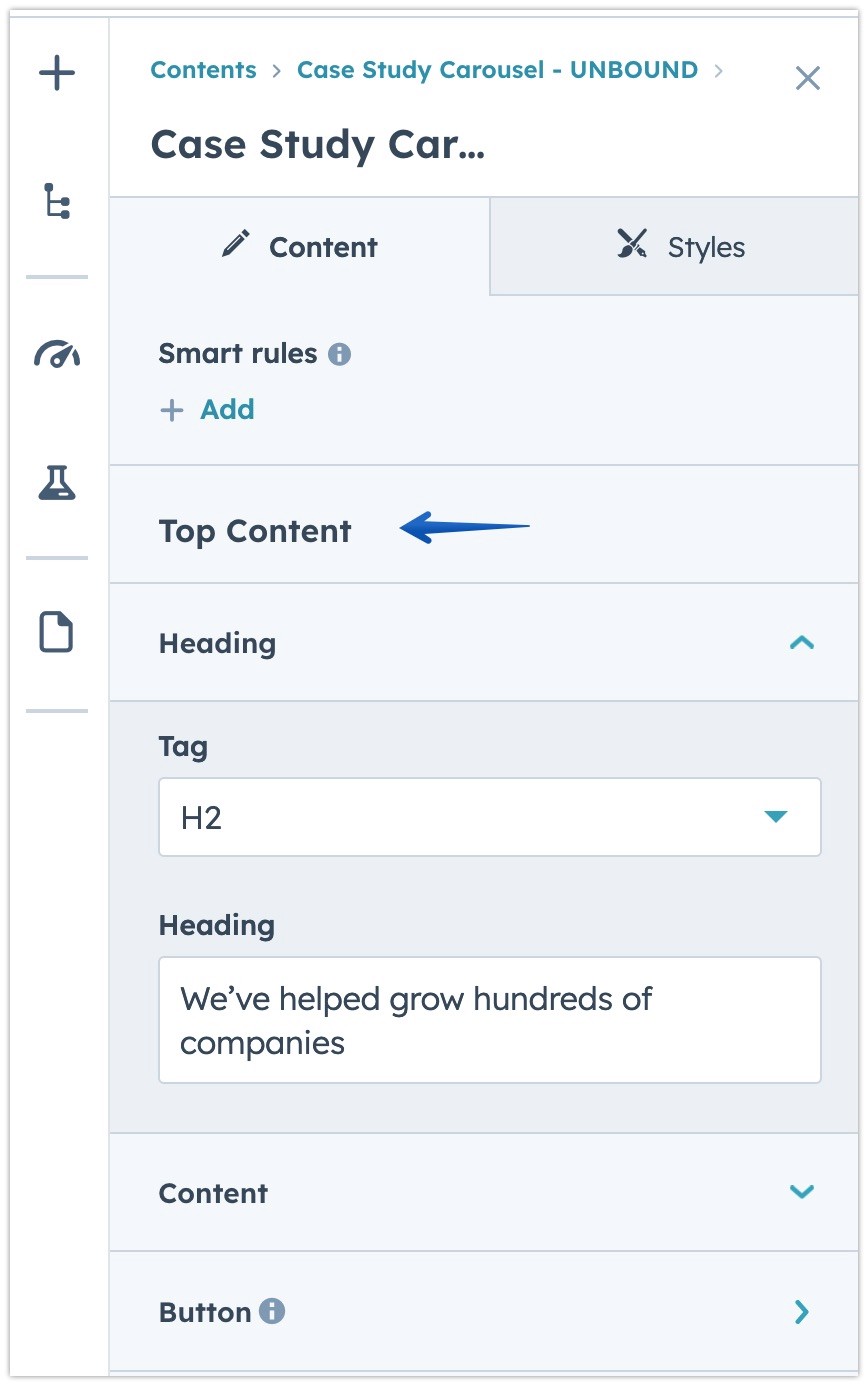
Step 2: Editing Top Content
Click on the Top Content tab to start modifying your header and body text.
While in this section, make sure to edit your buttons. Depending on your plan, you can add HubSpot CTAs. Otherwise, continue with the regular button choices.
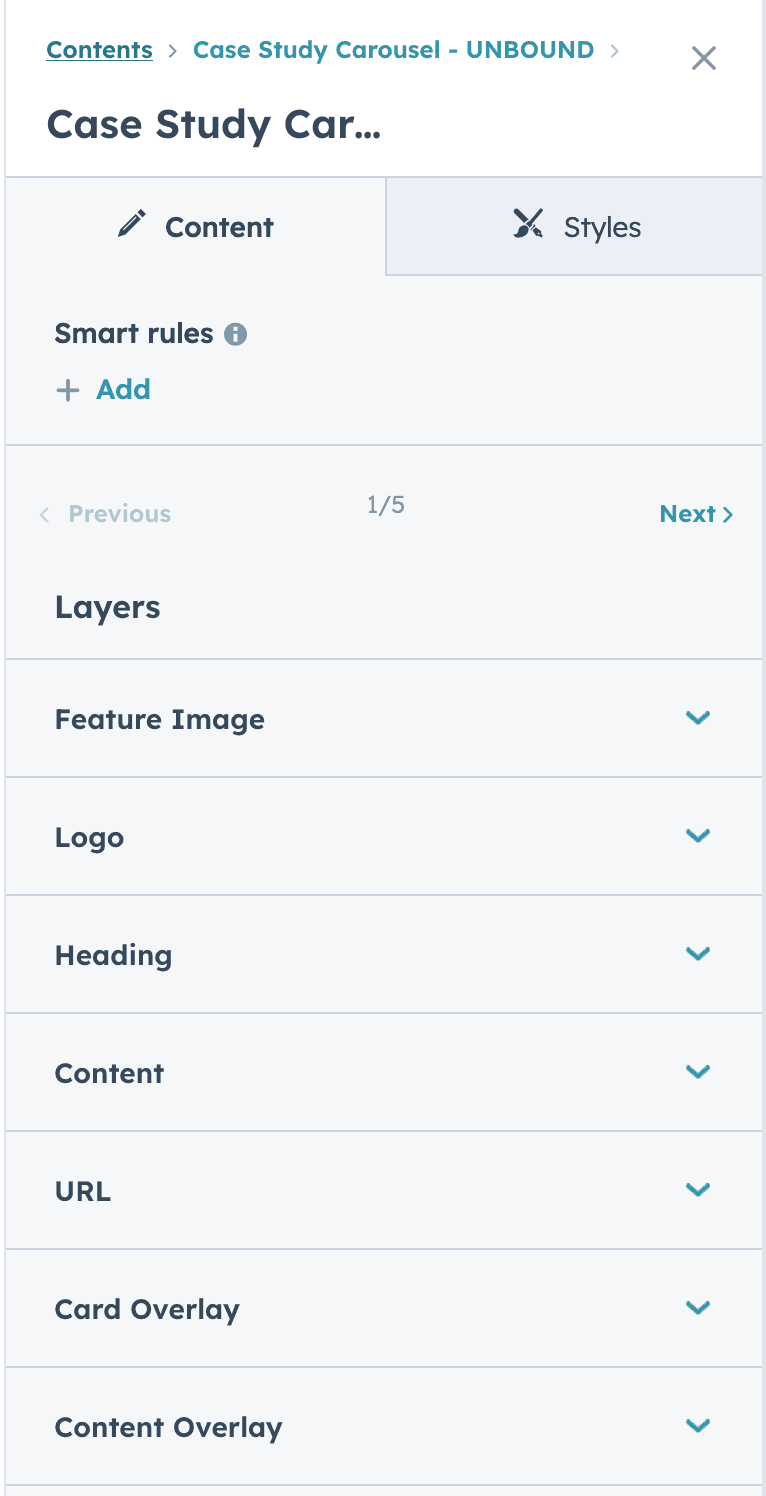
Step 3: Configuring Case Study Cards
For setting up individual case study cards within the carousel, here's what each element entails:
Feature Image: Select the card to add an image that represents the case study. This will be the main visual cue for your audience.
Logo: Upload a logo to associate with the case study, enhancing brand recognition and authenticity.
Heading: Input the case study's title. Choose a clear and captivating title that reflects the study's content.
Content: Add a succinct summary or description for the case study, enticing viewers to engage further.
URL: Insert the link to the detailed case study or related webpage. Verify the URL directs to the correct page for users to explore more information.
Card Overlay: Opt for a color overlay on the feature image if it serves to enhance text legibility or to maintain visual consistency with your brand's theme.
Content Overlay: Apply an overlay on the content section if needed for design purposes or to improve contrast for text over the background.
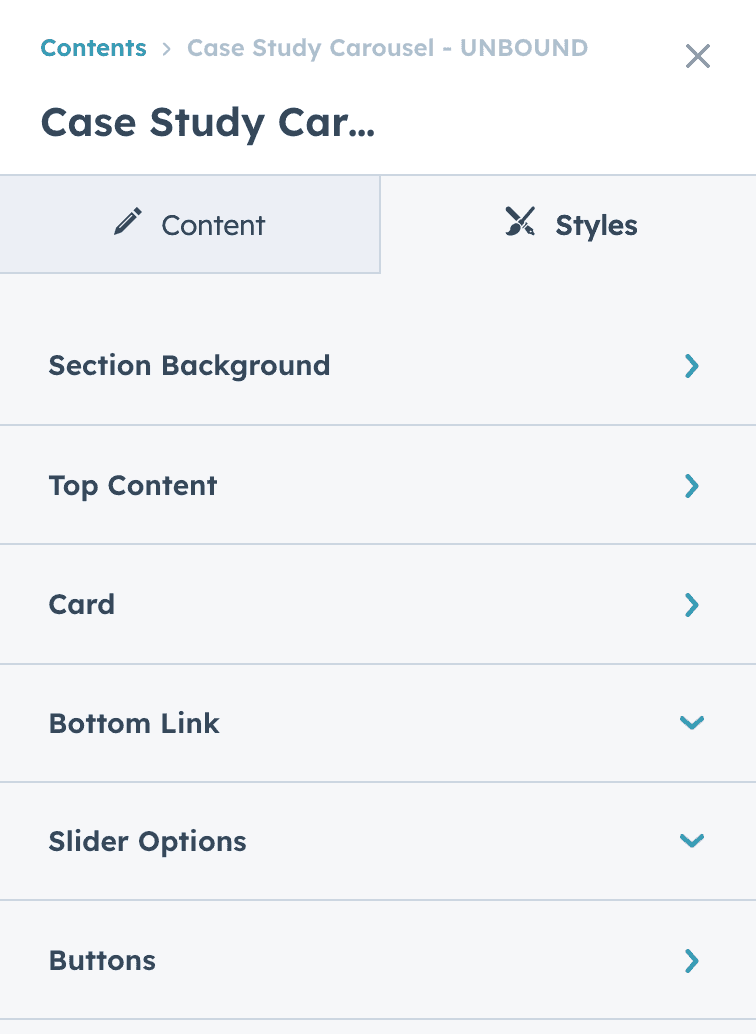
Step 4: Customizing Styles
Switch to the Styles tab to modify the visual aspects of your carousel.
Here, you can customize background colors or images, text styles, and divider shapes.
Ensure consistency with your brand by applying your color scheme.
Card look and feel (padding, spacing, shadow, border radius)
Define color for the Bottom Link (section link)
Turn on auto-slide and decide the speed for the case study cards
Define your primary and secondary colors for button (regular only)
Tips and Best Practices
Keep your case study titles concise but descriptive to engage users immediately.
Regularly update your carousel with new case studies to keep the content fresh.
Use high-quality images and consistent branding to maintain a professional look.
By following these steps, you'll be able to create a captivating Case Study Carousel that not only showcases your success stories but also enhances user engagement on your website. For further assistance or more detailed customization options, please refer to our full documentation or contact support.
Image Usage
Asset Usage Information
You're free to use all assets in this template for personal or commercial purposes, with exceptions for certain images. Please refer to the respective author and license for these.
Modern Architecture
- Joel Filipe - Source
- Lance Anderson - Source
- Ricardo G. Angel - Source
- Jimmy Chang - Source
- Anders Jildén - Source
- Juan C. Becerra - Source
Additional Assets